
Your questions, answered.
Practical guidance for accounts, groups, loads, bids, operations, delivery evidence and billing.
Privacy note: every signed-in screen shown below comes from the real LoadSub staging interface using demonstration data. It contains no customer or production account data.
Accounts, sign-in and security
Create and protect your company account, then control who can use it.
How do I create an account?
Choose Register, enter your company and account details, then open the verification email. After verification, sign in and choose the onboarding goal that best matches how you plan to use LoadSub.
- Open the newest verification email and confirm your address.
- Sign in and choose a goal, or choose Pick later.
- Follow the suggested setup steps; completed work is ticked off automatically.
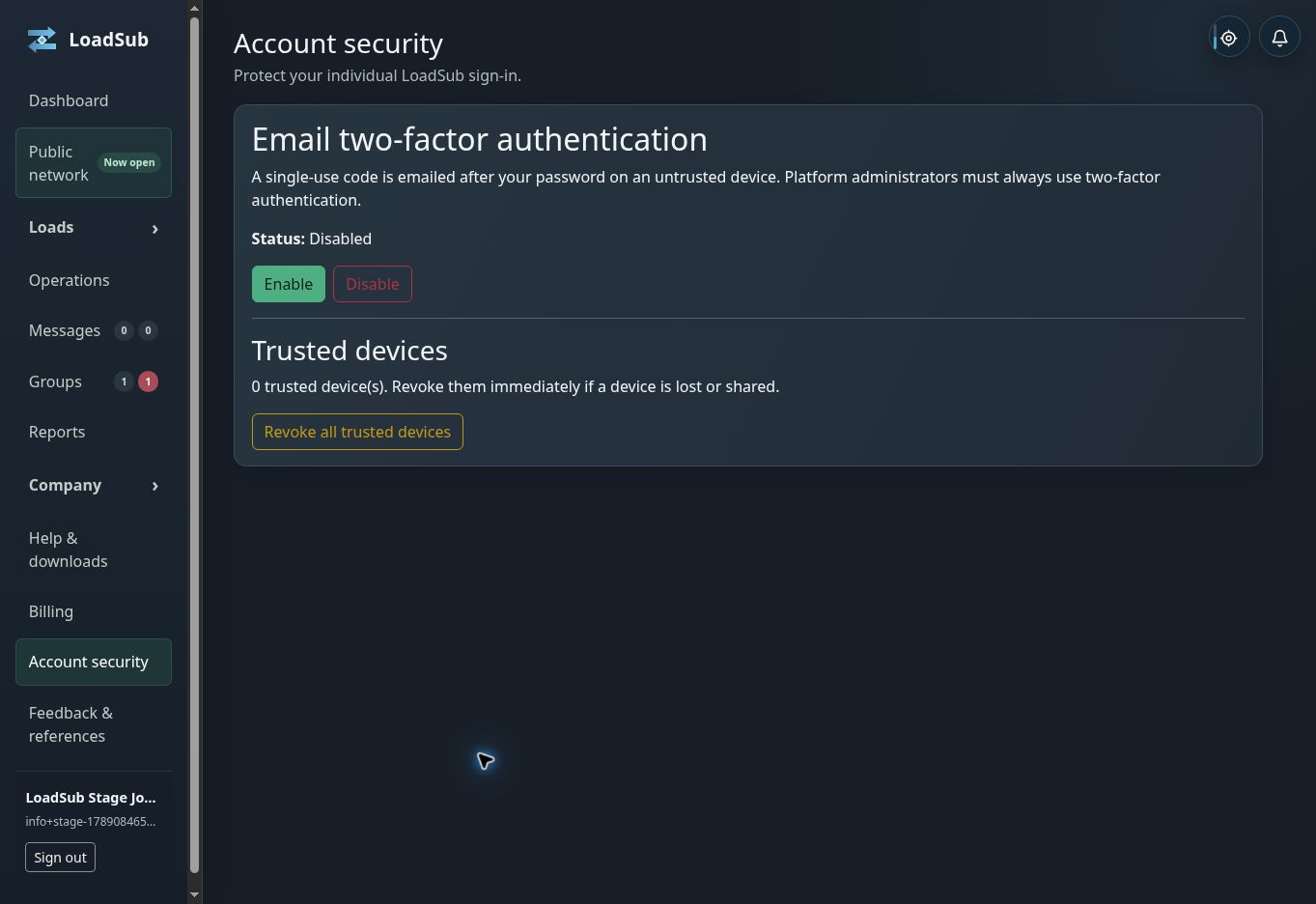
Why am I being asked for a two-factor code?
Two-factor authentication is optional for normal company accounts and is used only after it has been enabled in Account security. Enter the newest emailed code. A trusted device can reduce repeat prompts on a private browser you control.
What does ‘trust this device’ mean?
It remembers that browser as a trusted device. Use it only on a private device you control. Removing a trusted device means that browser must complete two-factor authentication again.
What happens when I sign out?
The signed-in session on that browser ends. Trusting a device affects future two-factor prompts; it does not keep you signed in.
I did not receive an email. What should I check?
Check spam and filtered folders, confirm the address is correct and request one fresh message. Use only the newest link or code. Avoid repeatedly requesting emails because older codes are intentionally superseded.
Dashboard and navigation
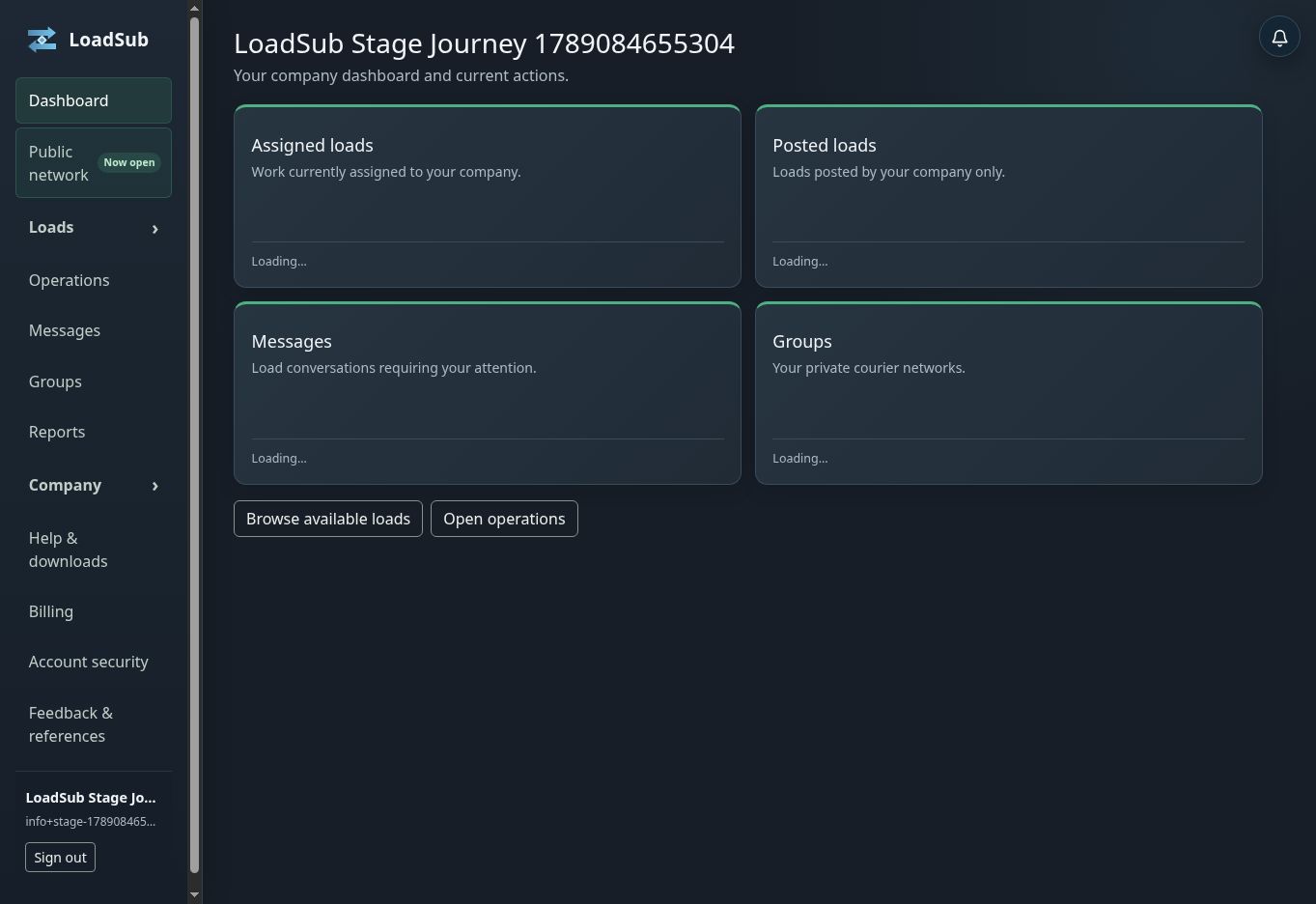
Counters show the records relevant to your company and highlight items that need attention.
Where do I find each kind of work?
Available loads shows work you may bid on. My bids shows offers from your company. Assigned loads contains awarded work, Operations contains live journeys, and Posted loads contains work your company published.
Why do some navigation counters show two numbers?
The first number is the total in that area. The second is the new or pending subset. A pending count is an attention signal, not proof that an action is always possible.
How do I use the onboarding goal and progress marker?
Choose the goal closest to your immediate job: sharing courier work, managing subcontractors, setting up vehicles and compliance, or completing company setup. The progress marker updates as the relevant tasks are completed. You can change the chosen goal later.
A counter looks wrong. What should I do?
Reload once, open the destination page and clear any filters. If the values still disagree, report both numbers, the page name and the time of the observation.
Company, users and roles
Owners and managers maintain the operational identity behind every load and bid.
Who can change company settings?
Owners and managers can maintain the profile and address book. Company access is assigned through the Owner, Manager and Driver roles; one person may hold more than one operational role.
Why can one user see a button another cannot?
Actions depend on role, company status, group membership, billing, insurance compliance and the current record state. A missing action can be correct rather than a display fault.
What happens when a user is removed?
Their access and active sessions are revoked. Historical records retain the responsible person or company so the operational and audit trail remains intelligible.
Vehicles, trailers and insurance
Keep resources and compliance current before bidding or assigning work.
How do I add a vehicle or trailer?
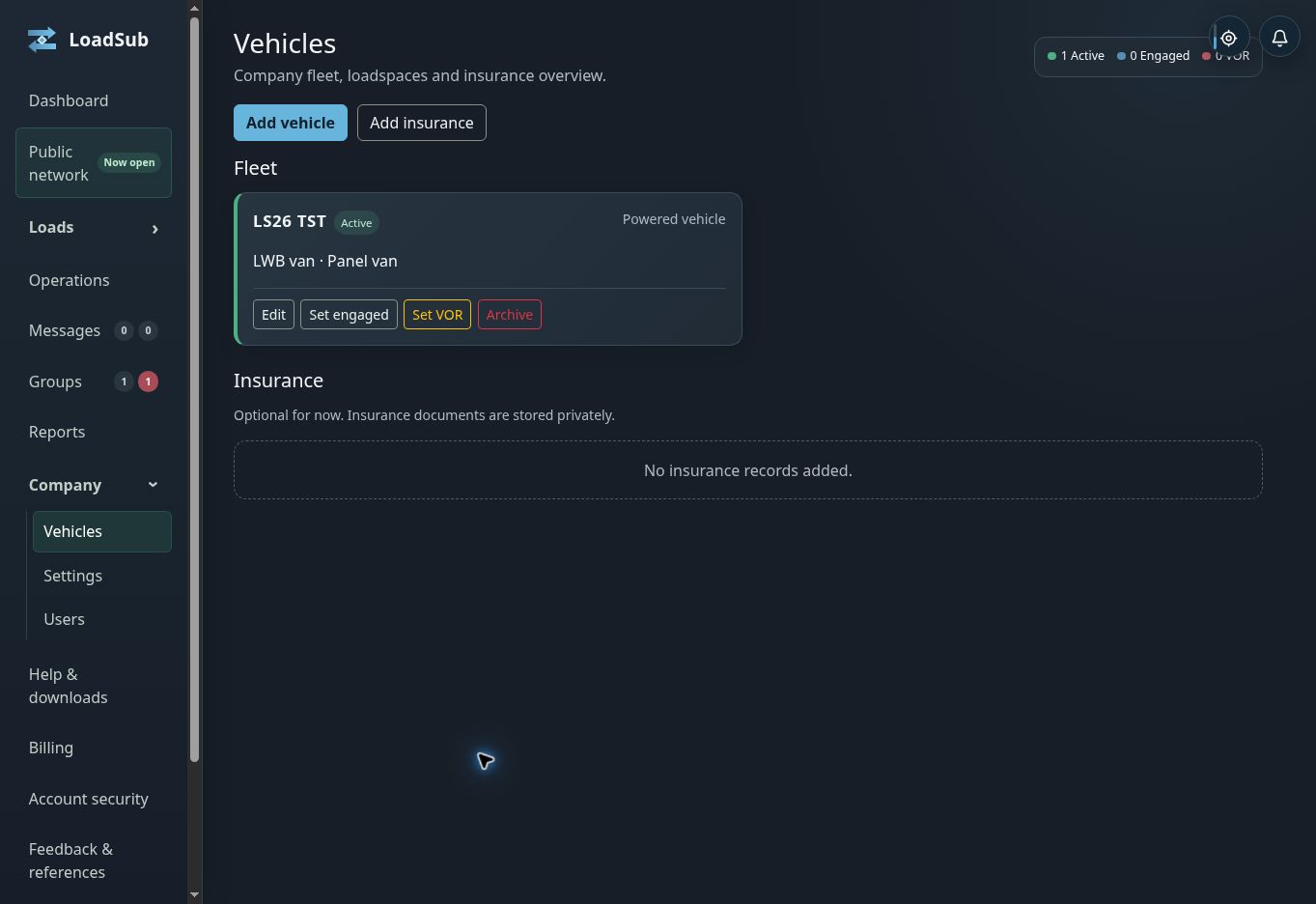
Open Vehicles and choose Add vehicle. Enter the essential matching fields, dimensions, capabilities and status where relevant.
What do Active, Engaged and VOR mean?
Active means available for matching, Engaged means currently committed, and VOR means vehicle off road. Keep the status accurate so bids and assignments use realistic resources.
How is insurance assessed?
A group can require cover types, minimum values, evidence, expiry and grace rules. LoadSub compares company evidence with the rules of the group in which the work appears.
Why might insurance block a bid?
Open the named finding and correct the exact missing, insufficient or expired requirement. A generic document upload will not satisfy a rule unless its type and dates match.
Private groups and subcontractor networks
Groups keep trusted commercial networks private while giving their owners proper controls.
What is a private group?
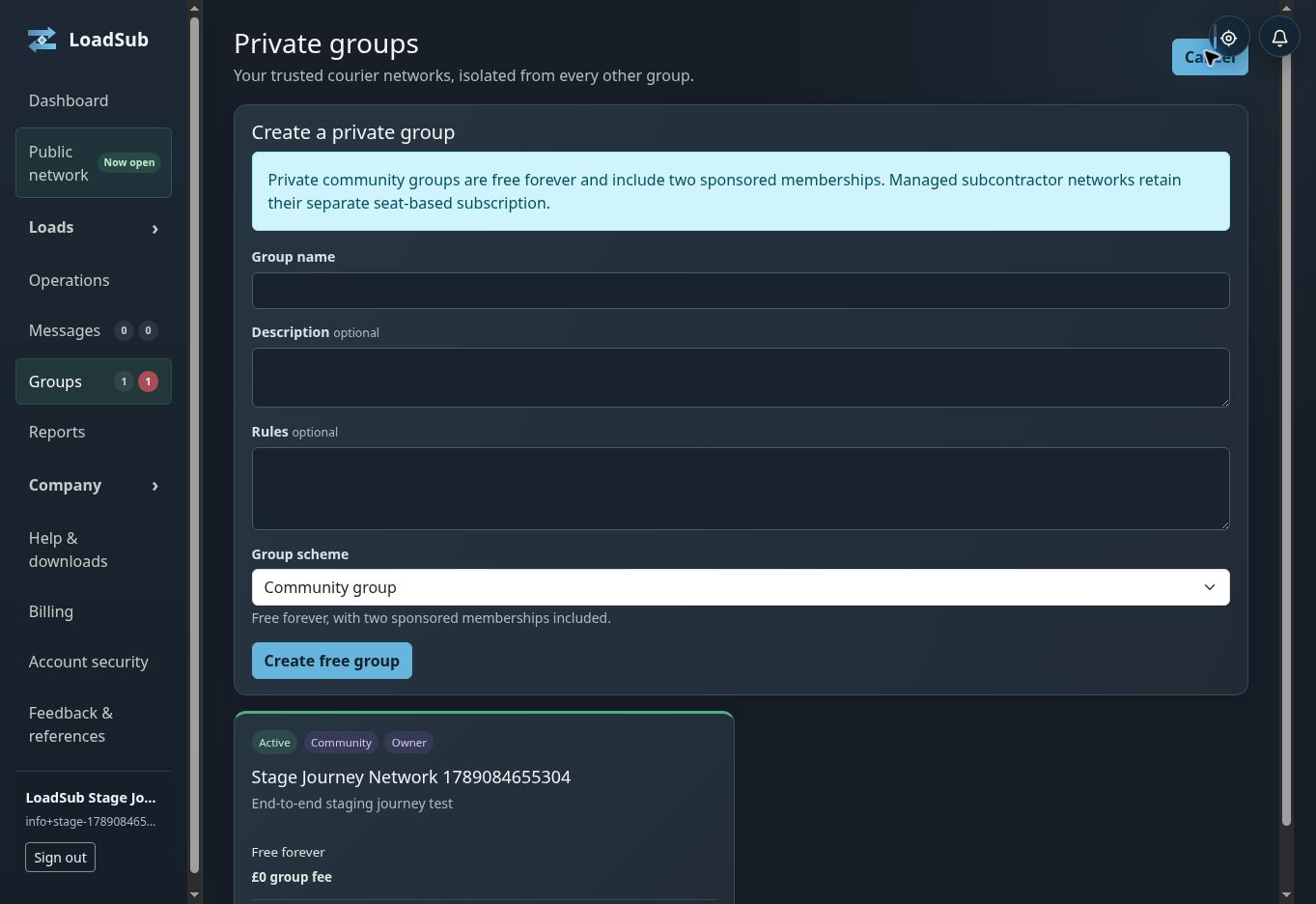
An invitation-only network in which approved companies can share and manage loads. Group owners control branding, membership, rules and compliance requirements.
How do I join a private group?
Open the invitation link, sign in or register your company, review the group rules and apply. The group owner or administrator must approve the application before the group’s work becomes available to you.
What is a managed subcontractor network?
A network for a transport team to issue work to restricted subcontractor accounts. Subcontractors can receive and operate invited work without gaining unrelated group functions.
How do I create a group?
Choose Create group, select the group type, then add branding and rules. Private community groups are free forever and include two owner-controlled sponsored memberships. Managed subcontractor networks use separate seat-based pricing.
Can bidding be paused without removing a member?
Yes. A group administrator can pause bidding and record a reason. This preserves membership and history while preventing new bids.
Why can’t I select a group while posting?
Check that the group is active and that your company is an eligible member or owner. Private community groups do not require a group subscription; managed subcontractor networks still require an active network plan.
Posting and finding loads
Structured records prevent instructions, timings and confidential details from disappearing into chat.
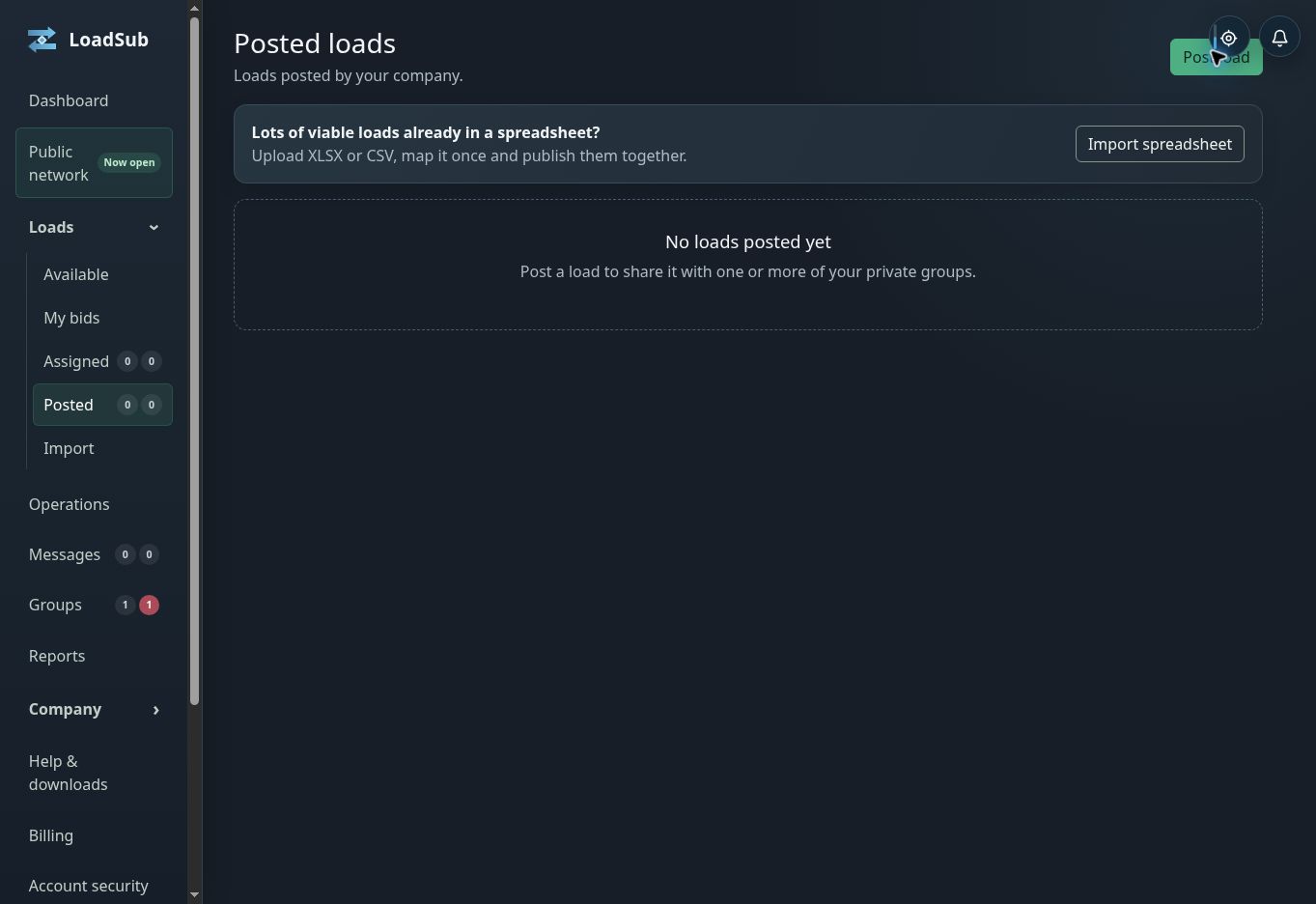
How do I post a load?
Choose Post load, select an eligible group, enter the stops, timescale, vehicle requirements, description and payment method, then review before publishing.
What belongs in confidential stop details?
Put contacts, precise access details and operational instructions in protected stop fields. General descriptions should contain only information suitable for all eligible group members.
How do I find suitable work?
Use search, group, postcode area, timescale, poster, vehicle, co-load, radius and sort filters. Clear filters if the result count becomes unexpectedly low.
Why is a load missing?
Check group membership, bidding pause, insurance compliance, visibility, whether the load closed or was awarded, and active filters. Loads are not shown across unrelated private groups.
Bids and awarding work
Offers remain attached to the correct load and company.
How do I bid?
Open an available load, choose a suitable vehicle where required, enter the offered amount and submit any permitted timing proposal or note.
Can I withdraw or change a bid?
A bid may be withdrawn while the workflow permits. After award, use the formal carrier-withdrawal or poster-cancellation process so the history remains complete.
How does a poster award the work?
Open the posted load, compare eligible bids and accept the chosen offer. The carrier can then assign operational resources and receive confidential stop details.
Why can’t I bid?
Typical causes are inactive membership, a bidding pause, missing mandatory insurance, an unavailable company account, a closed load or trying to bid on your own company’s load.
Assignment and live operations
Awarded work becomes an operational job with assigned resources and recorded milestones.
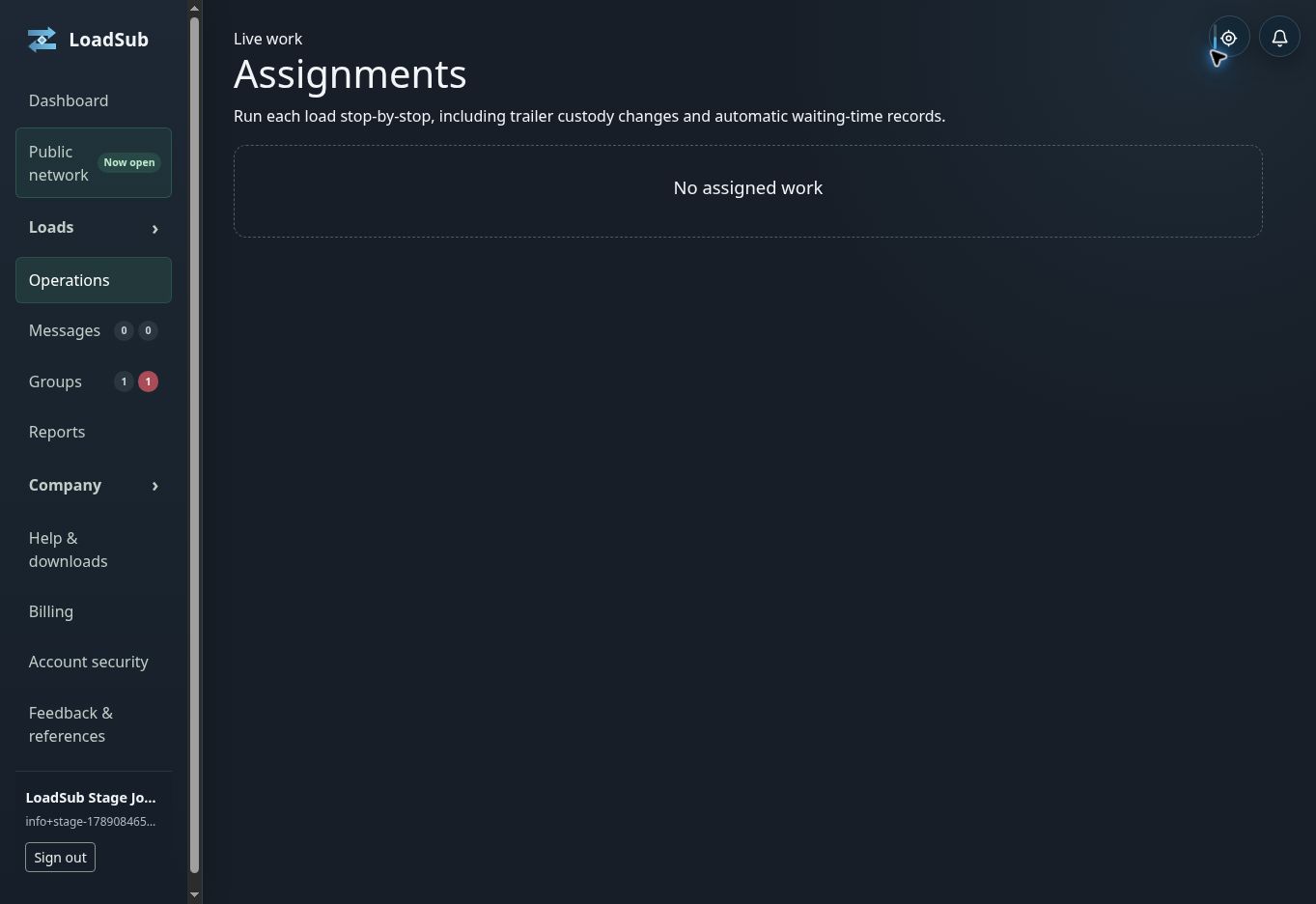
How do I assign a driver and vehicle?
Open the awarded load in Operations or Assigned loads, select eligible resources and save. The assigned driver receives the operational record allowed by their role.
Why is a vehicle missing from the selector?
Check that it belongs to the company, is active, meets the load requirements and is not already committed in a conflicting way.
What is the normal lifecycle?
Assigned work progresses through journey start, arrival, stop completion and final completion. Milestones must occur in order so timestamps and evidence remain trustworthy.
What should I do if the connection drops during a job?
Do not repeatedly press the same action. Restore the connection, reload the operational record and confirm the last recorded milestone before continuing. If an action is missing, report the load reference, action and approximate time.
POD, charges and invoices
Delivery evidence and commercial follow-up remain connected to the load.
How is proof of delivery recorded?
At a POD-required stop, the operational user records the recipient, date and time, signature where required, notes and permitted photo or PDF evidence.
Who can see POD?
The assigned carrier and poster can see the completed evidence. Access follows the load relationship rather than general group membership.
How are additional charges handled?
Record the charge against the load with a reason and evidence where required. The other party can review it through the connected commercial workflow.
When can an invoice be created?
Use invoicing after the load and commercial state permit it. Check completion, accepted charges and company tax details before generating the connected invoice.
Messages, cancellations and disputes
Operational conversations and formal exceptions remain auditable.
Where should operational communication happen?
Use the message thread linked to the load. Pre-bid messages remain tied to both parties; assigned-load messages continue with the awarded carrier.
How do cancellation and withdrawal work?
Use the formal poster-cancellation or carrier-withdrawal action, provide the required reason and follow any consequence shown by the service.
How do I raise a dispute?
Open the load case, select the category, provide a clear summary and attach only relevant evidence. Messages can be included only when they are relevant to the case.
Reviews, references and company reputation
Verified feedback helps companies judge real working relationships without allowing one early complaint to define a business.
Who can leave a verified review?
A company connected to a completed LoadSub assignment can leave Positive, Neutral or Negative feedback. Review text is limited to 750 characters and the reviewed company can always attach a reply of up to 500 characters.
When does the positive-feedback percentage appear?
The percentage appears only after at least five scored reviews. Until then, the profile shows that more verified feedback is needed instead of calculating a potentially misleading score from one or two reviews.
Can an unfair review be challenged?
Yes. The reviewed company can flag the review and submit private counter-evidence for the platform owner to adjudicate. A decision can uphold the review, mute it from the score or remove it while preserving the audit record.
Can a company provide a reference without a LoadSub load?
Yes. Companies that know one another can provide a short business reference. References are labelled separately from assignment-verified reviews.
Can external ratings be shown?
A company can add links to its own profiles on services such as Trustpilot and can upload clearly labelled screenshots of external feedback. External material remains company supplied and does not count as a LoadSub-verified review.
What can I attach to a review or challenge?
Attach only material relevant to the working relationship or completed LoadSub assignment. Do not include passwords, payment-card information or unrelated personal information.
Will I be notified about feedback?
Yes. The reviewed company is notified when a review is posted or amended, and review replies remain attached to the original feedback.
Notifications, reports and the PWA
Stay informed without relying on a permanently open desktop tab.
How do notifications work?
The notification centre keeps events requiring attention. Group members can control non-load notification preferences where offered; browser alerts require permission and a supported browser.
What can Reports export?
Eligible managed-network users can filter operational results and export the supported report by subcontractor, client, destination, date range or group.
How do I install LoadSub as an app?
Use your browser’s install or Add to home screen option. The installed PWA uses the same account and permissions as the website.
Billing and subscriptions
Private membership and managed-network pricing are kept clear.
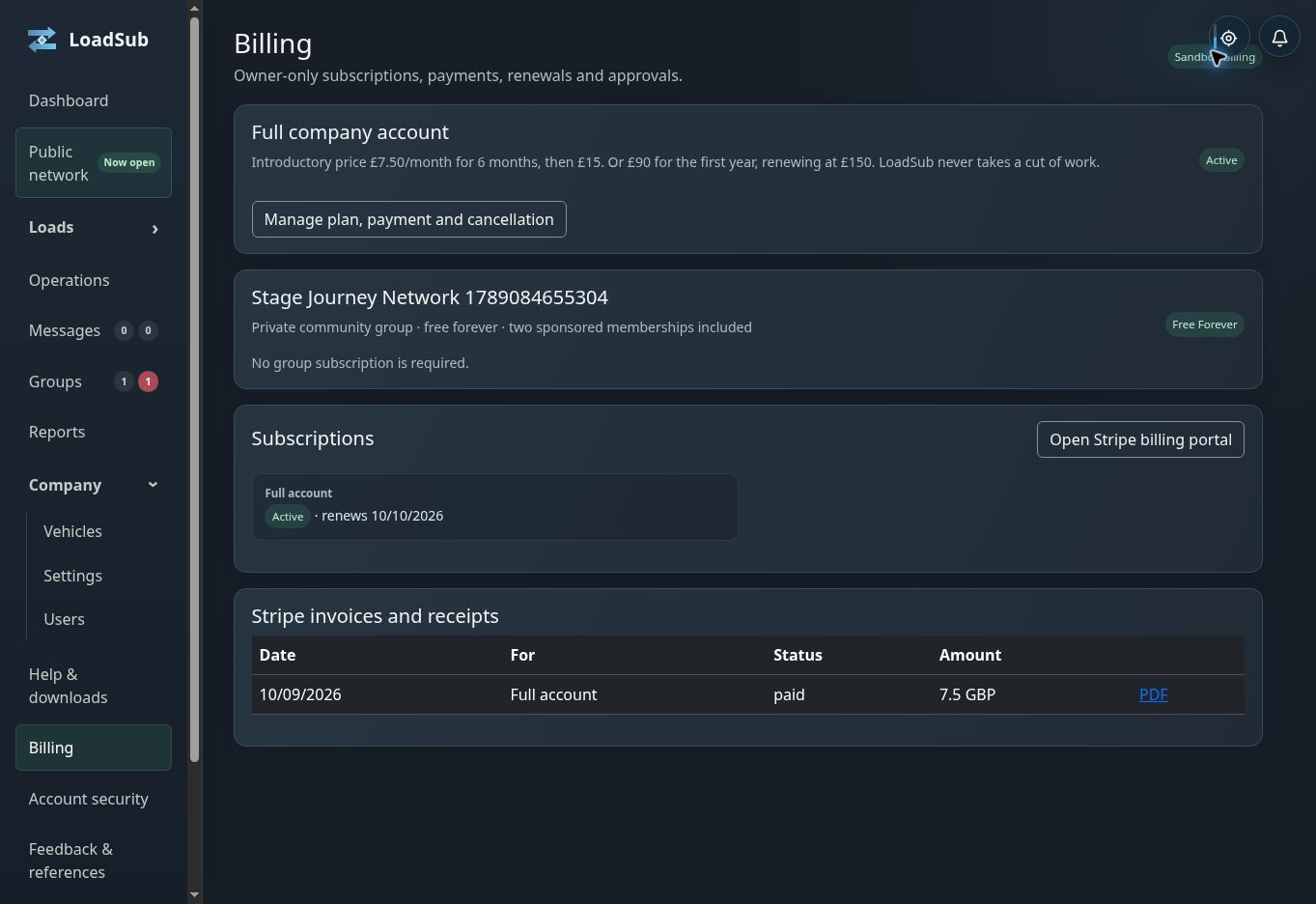
Does LoadSub charge commission?
No. LoadSub charges subscriptions and takes 0% of each load, bid or invoice value.
What does the 30-day trial include?
The company trial provides full company access for 30 days, with no payment card required. Private community groups are free forever. Managed subcontractor networks include their own 30-day evaluation before the separate subscription begins.
Do private groups cost extra?
No. Private community groups are free forever, with no member threshold to reach, and each includes two sponsored member accounts. Managed-subcontractor membership includes the company’s full private-group access; restricted subbie seats cannot create groups of their own.
What should I do if checkout appears to fail?
Do not retry rapidly. Record the visible error and time, then review Billing to see whether the subscription was created. Never send complete card details to support.
Capture the useful facts — never the secrets.
Include: page name, record reference, company role, exact error, time and timezone, browser or device, and whether one reload changed it.
Never include: passwords, two-factor codes, complete payment-card details, session cookies or unrelated personal information.